User Management & Role-Based Access Control (RBAC)
Containery includes a robust Role-Based Access Control (RBAC) system to manage user access and restrict permissions across hosts, resources, and action types.
1. User Account Administration
- Navigation: Users (Sidebar: Users).
Viewing Users
- User List: View registered accounts, usernames, display names, email addresses, created date, and assigned roles.
- Search & Pagination: Filter user list by username or display name.
Adding a New User
- Navigate to Users > Add User.
- Enter Username and Password (must meet minimum password length requirement).
- Optionally enter Display Name and Email Address.
- Select an initial Role from the available roles dropdown.
- Click Create User.
Editing User Accounts & Roles
- Navigate to Users > Click User Name (or Edit icon).
- Change user password without entering the old password (administrator override).
- Assign new roles or remove existing roles.
- Click Save Changes.
Deleting a User
- Navigate to Users > Click Delete icon next to a user row.
- Confirm user deletion.
Protected System User
The primary administrator account (User ID 1) cannot be deleted or unassigned from the admin role.
2. Role & Permission Management
- Navigation: Users > Roles.
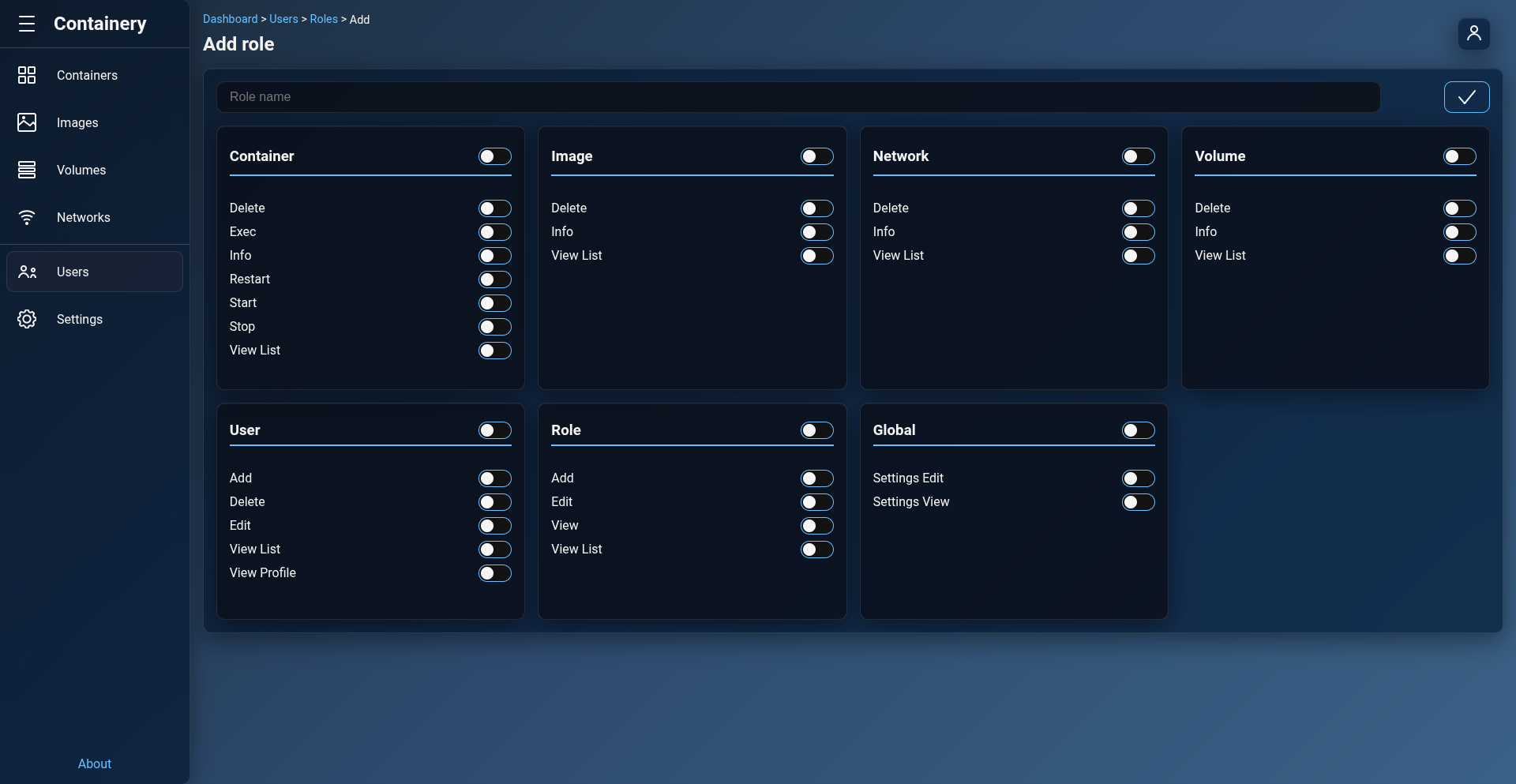
Creating a Custom Role
- Navigate to Users > Roles > Add Role.
- Enter a Role Name (up to 20 characters, e.g.
Developer,Auditor). - Select granular permissions across 7 categories (see reference below).
- Click Create Role.
Editing a Role
- Navigate to Users > Roles > Click Role Name.
- Rename the role or toggle permissions on/off.
- Click Save Changes.
Super Admin Protection
The default admin role (Role ID 1) possesses full system permissions and cannot be modified or deleted.
3. Granular Permission Reference
Containery defines 27 permissions split into 7 functional categories:
| Category | Permission Key | Description |
|---|---|---|
| Container | CONTAINER_VIEW_LIST |
View container list across hosts. |
CONTAINER_INFO |
View container details, logs, and processes. | |
CONTAINER_START |
Permission to start stopped containers. | |
CONTAINER_STOP |
Permission to stop running containers. | |
CONTAINER_RESTART |
Permission to restart containers. | |
CONTAINER_DELETE |
Permission to delete containers or prune. | |
CONTAINER_EXEC |
Open interactive web shell terminal. | |
| Image | IMAGE_VIEW_LIST |
View Docker images list. |
IMAGE_INFO |
View detailed image build metadata. | |
IMAGE_DELETE |
Delete cached Docker images. | |
| Volume | VOLUME_VIEW_LIST |
View persistent Docker volumes. |
VOLUME_INFO |
View volume details and mountpoints. | |
VOLUME_DELETE |
Delete Docker storage volumes. | |
| Network | NETWORK_VIEW_LIST |
View Docker networks list. |
NETWORK_INFO |
View network IPAM and attached containers. | |
NETWORK_DELETE |
Delete Docker networks. | |
| User | USER_VIEW_LIST |
View registered user accounts list. |
USER_VIEW_PROFILE |
View other user profile details. | |
USER_ADD |
Create new user accounts. | |
USER_EDIT |
Edit users and change user passwords. | |
USER_DELETE |
Delete user accounts. | |
| Role | ROLE_VIEW_LIST |
View system roles list. |
ROLE_VIEW |
Inspect role permissions. | |
ROLE_ADD |
Create new system roles. | |
ROLE_EDIT |
Edit role names and toggle permissions. | |
| Global | GLOBAL_SETTINGS_VIEW |
View global application settings panel. |
GLOBAL_SETTINGS_EDIT |
Modify global settings and Docker hosts. |