Container Management
Manage container lifecycles, inspect container details, view real-time logs, examine running processes, open interactive web terminals, and customize table layouts across all Docker hosts.
1. Container List & Filtering
- Navigation: Containers (Sidebar: Containers).
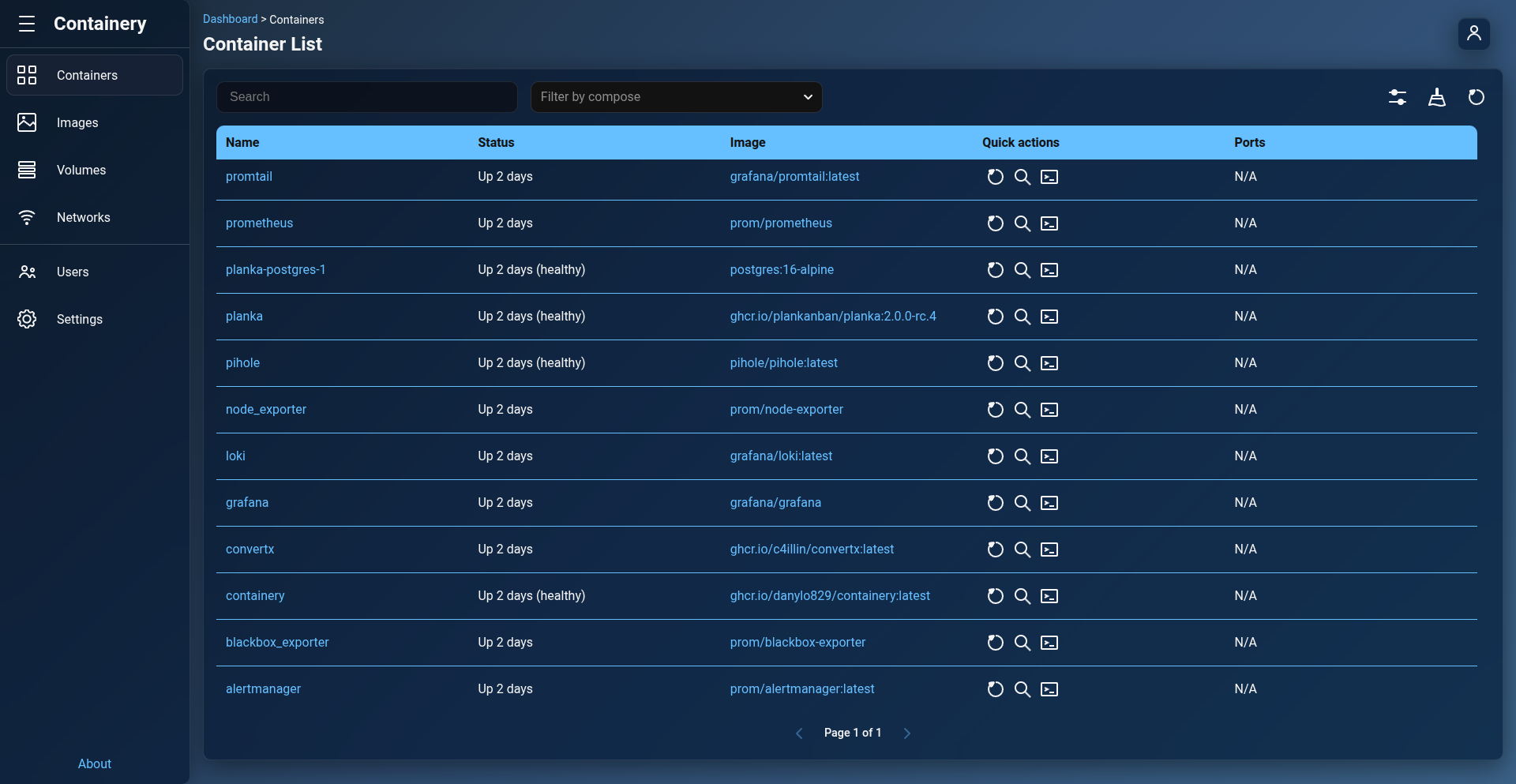
Features
- Multi-Host Aggregation: Displays all containers running across your connected Docker hosts in a single unified table.
- Filter by Docker Host: Use the top host filter bar to toggle specific Docker hosts on or off.
- Filter by Docker Compose Project: Select specific Docker Compose projects from the dropdown filter, or select standalone to show containers created individually without Docker Compose.
- Search, Sorting & Pagination: Search containers by container name, container ID, image, state, or status. Click column headers to sort ascending or descending.
2. Customizing Table View & Quick Actions
- Navigation: Containers > Click Table Settings icon (or List Settings button).
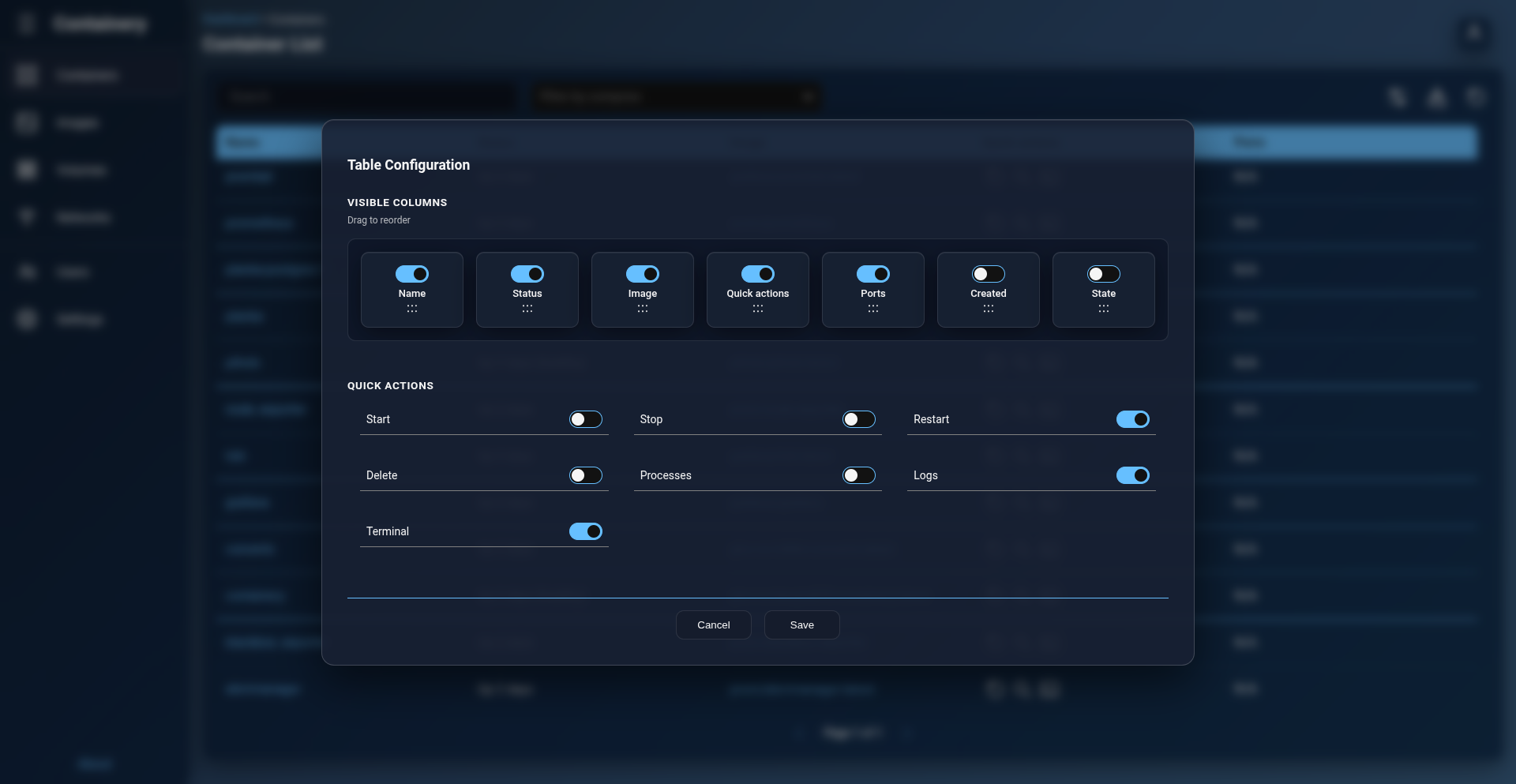
Customize table columns and quick action shortcuts to suit your workflow:
- Visible Columns: Toggle checkboxes for:
- Name
- Status (e.g. Up 3 hours, Exited (0))
- Image
- Quick actions
- Ports
- Created
- State
- Quick Actions Shortcuts: Customize which action buttons appear directly inside each container row:
- Start / Stop / Restart / Delete
- Processes / Logs / Terminal
- Click Save Settings to persist your layout into your personal account settings.
3. Container Lifecycle Controls & Bulk Pruning
Container Actions
- Start Container: Containers > Click Start icon next to a stopped container.
- Stop Container: Containers > Click Stop icon next to a running container.
- Restart Container: Containers > Click Restart icon to restart a container.
- Delete Container: Containers > Click Delete icon to permanently delete a container.
Bulk Pruning Unused Containers
- Navigation: Containers > Click Prune Containers button.
- Action: Deletes all stopped containers across selected Docker hosts and reports the total reclaimed disk space.
4. Container Details Inspection
- Navigation: Containers > Click Container Name.
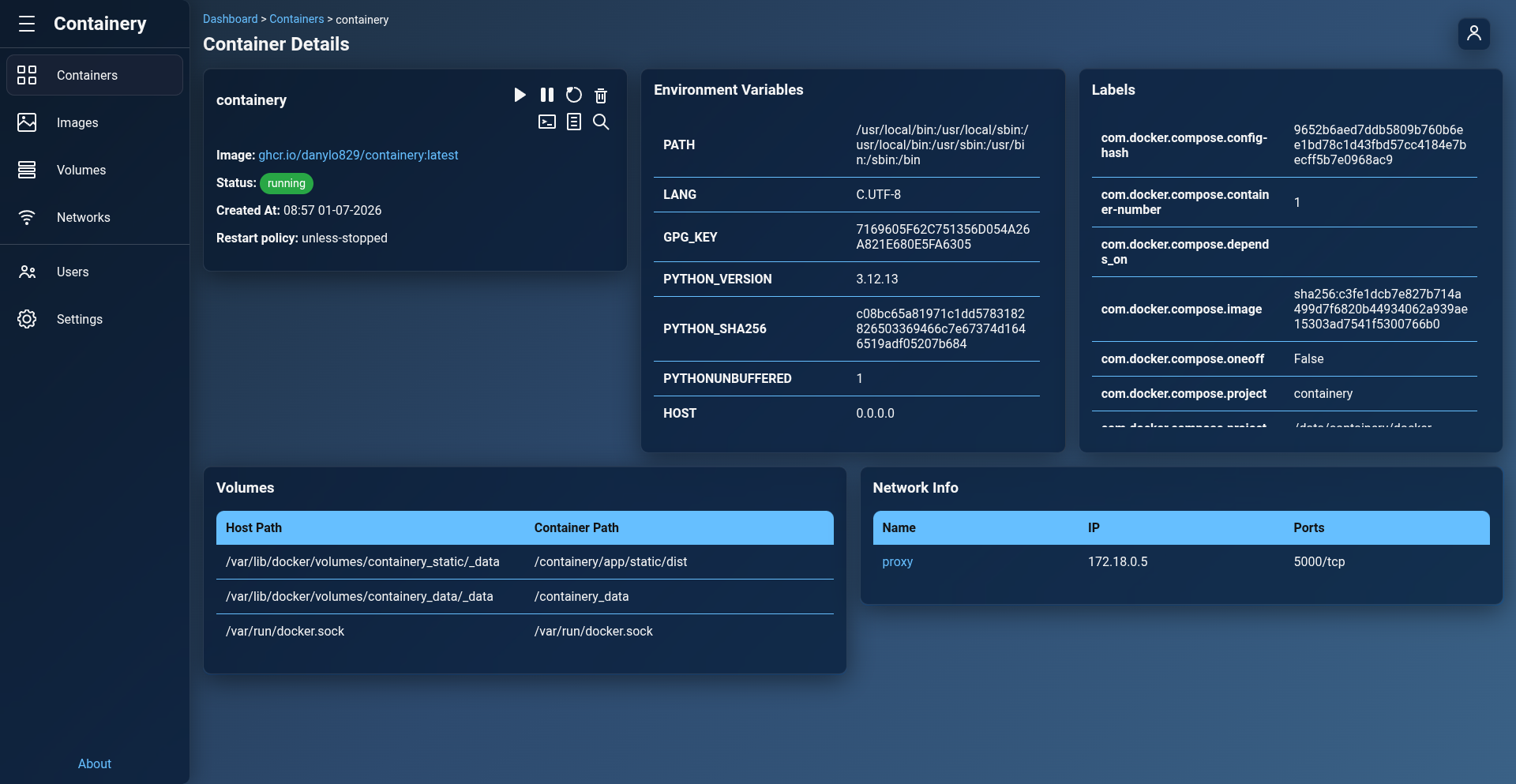
View comprehensive container metadata:
- General Info: Full Container ID, Created timestamp, State, Status, Image ID, Command, Entrypoint.
- Network & Ports: Port bindings (with direct clickable HTTP links to published host ports), assigned IPv4/IPv6 addresses, MAC address, gateway, and connected Docker networks.
- Mounts & Volumes: Source host paths, destination container paths, mode (
rw/ro), and volume driver types. - Environment & Labels: Environment variables (
KEY=VALUE) and Docker labels.
5. Real-Time Logs
- Navigation: Containers > Click Container Name > Logs (or click Logs quick action icon).
Options
- Tail Lines: Enter the number of recent log lines to fetch (e.g. 100, 500 lines).
- Stream Selection: Filter output by
all,stdout, orstderr. - Output Window: Formatted log viewer with auto-scroll and dark background.
6. Running Container Processes (top)
- Navigation: Containers > Click Container Name > Processes (or click Processes quick action icon).
Inspect live active processes running inside the container:
- Process Attributes: PID, User, CPU percentage, Memory usage, Virtual Memory size, TTY, Status, and Command line.
7. Interactive Web Terminal (Exec)
- Navigation: Containers > Click Container Name > Terminal (or click Terminal quick action icon).
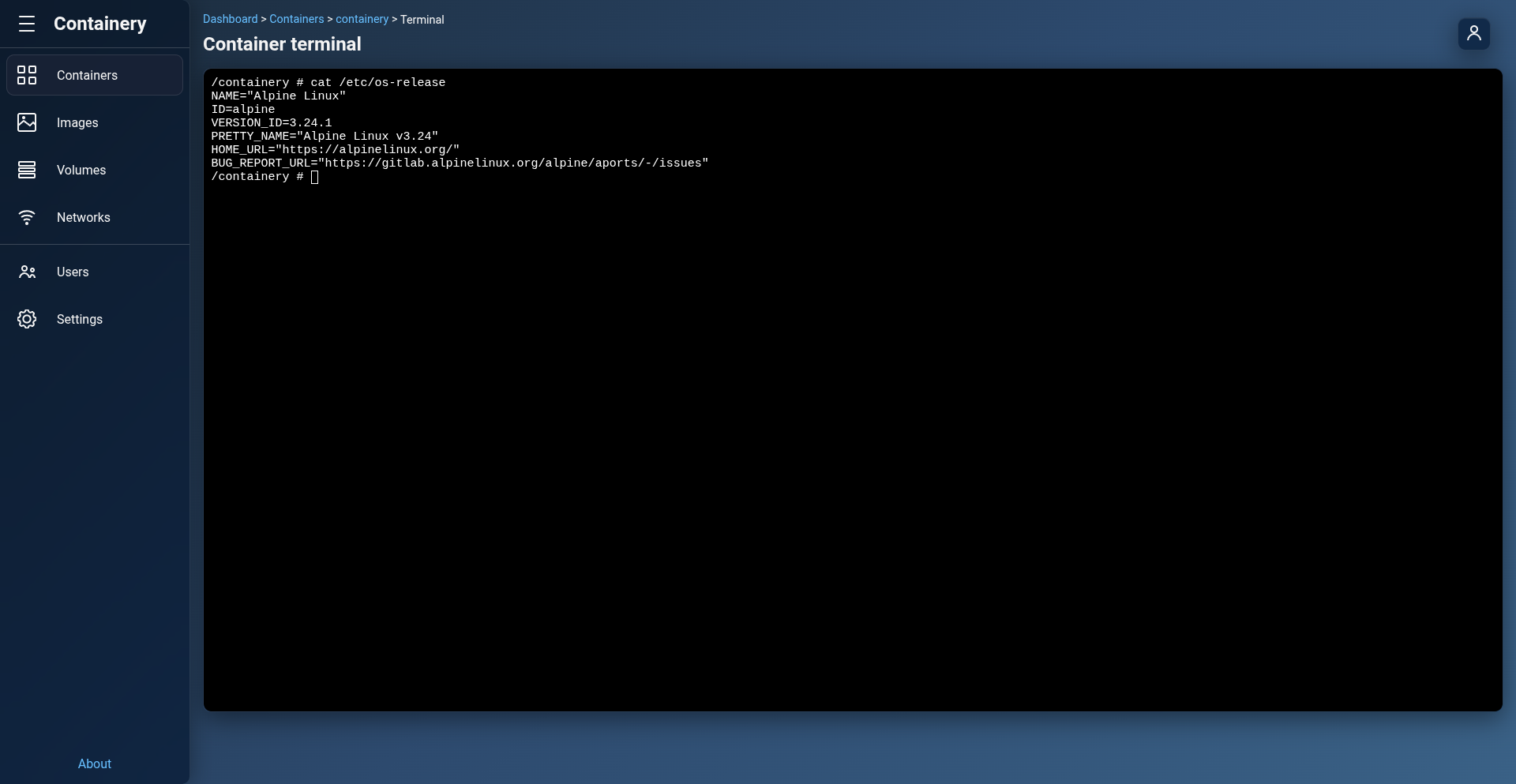
Open a direct interactive shell inside the container:
- WebSocket Streaming: Powered by SocketIO and xterm-compatible terminal rendering.
- Automatic Shell Detection: Attempts to spawn
/bin/bashor/bin/sh. - Interactive Troubleshooting: Run CLI commands, inspect files, or debug applications directly in your browser window.