Settings & Docker Hosts
Configure global application defaults and manage connection endpoints for local and remote Docker daemons.
1. Global Application Settings
- Navigation: Settings (Sidebar: Settings).
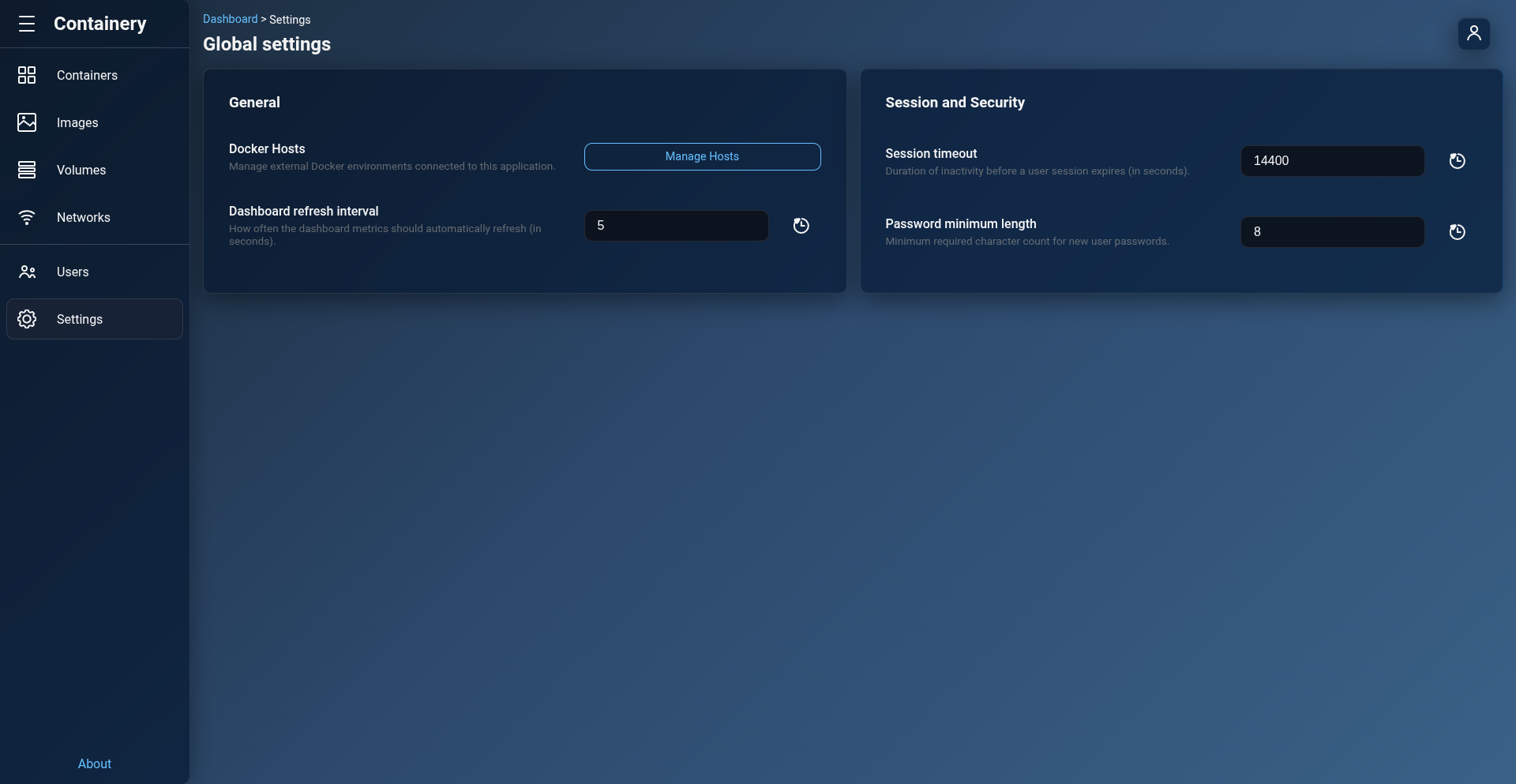
Available Global Settings
| Setting Key | Description | Default Value |
|---|---|---|
dashboard_refresh_interval |
Interval (in seconds) for dashboard statistics refresh. | 5 seconds |
session_timeout |
User session inactivity timeout (in seconds) before auto-logout. | 1800 seconds (30 mins) |
password_min_length |
Minimum character length enforced for new passwords. | 8 characters |
Updating & Resetting Settings
- Save Setting: Update any field and click Save Settings to persist changes instantly.
- Reset to Default: Click Reset to Default next to a key to clear custom values and revert back to factory defaults.
2. Docker Hosts Management
- Navigation: Settings > Docker Hosts.
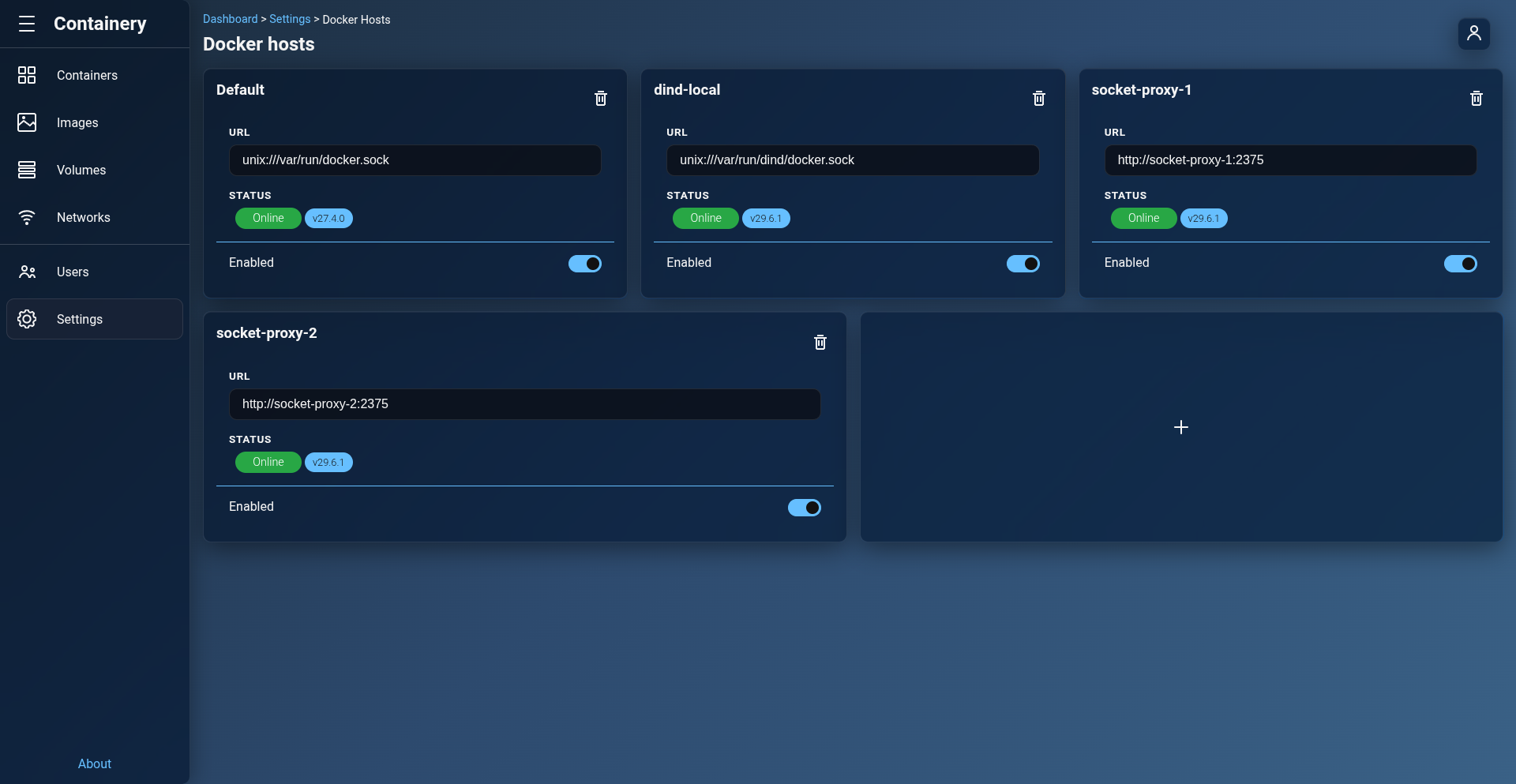
Containery allows you to control multiple Docker hosts from a single web instance.
Supported Docker Connection Schemas
- Local Unix Socket:
- URL Format:
unix:///var/run/docker.sock -
Use Case: Used when Containery is deployed on the same server as the target Docker daemon or sharing
/var/run/docker.sock. -
Remote Socket Proxy (Recommended):
- URL Format:
http://<remote-ip>:<port>orhttps://<remote-ip>:<port> - Use Case: Used to connect to remote Docker daemons securely via an HTTP/HTTPS socket proxy (e.g.
linuxserver/socket-proxy).
Adding a Docker Host
- Navigate to Settings > Docker Hosts > Add Host.
- Enter a friendly Host Name (e.g.
Prod Server 1). - Enter the Connection URL (e.g.
unix:///var/run/docker.sockorhttp://192.168.1.50:2375). - Check Enabled.
- Click Add Host.
Toggling & Deleting Hosts
- Enable / Disable: Toggle host status to temporarily pause monitoring without removing host settings.
- Delete Host: Click Delete to permanently remove a Docker host connection endpoint.